How to use ShiftWake
Follow these simple steps to master your shift schedule and never miss an alarm again.
Step 1
Setting up your shift cycle
Define your work days and free days. ShiftWake will automatically calculate your schedule forward.
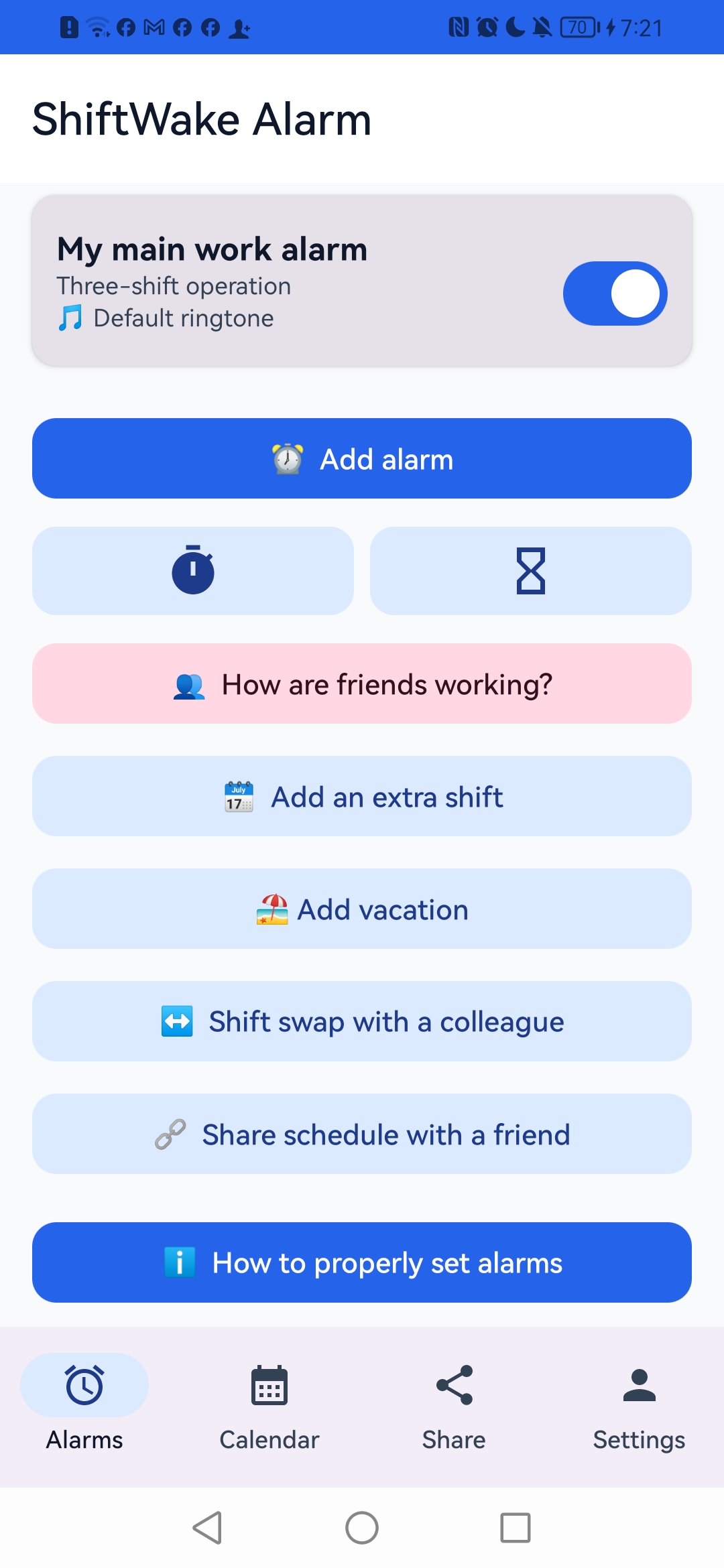
- 1 Go to the Main Screen and add a new alarm.
- 2 Name your alarm (e.g., "Factory Main") to keep things organized.
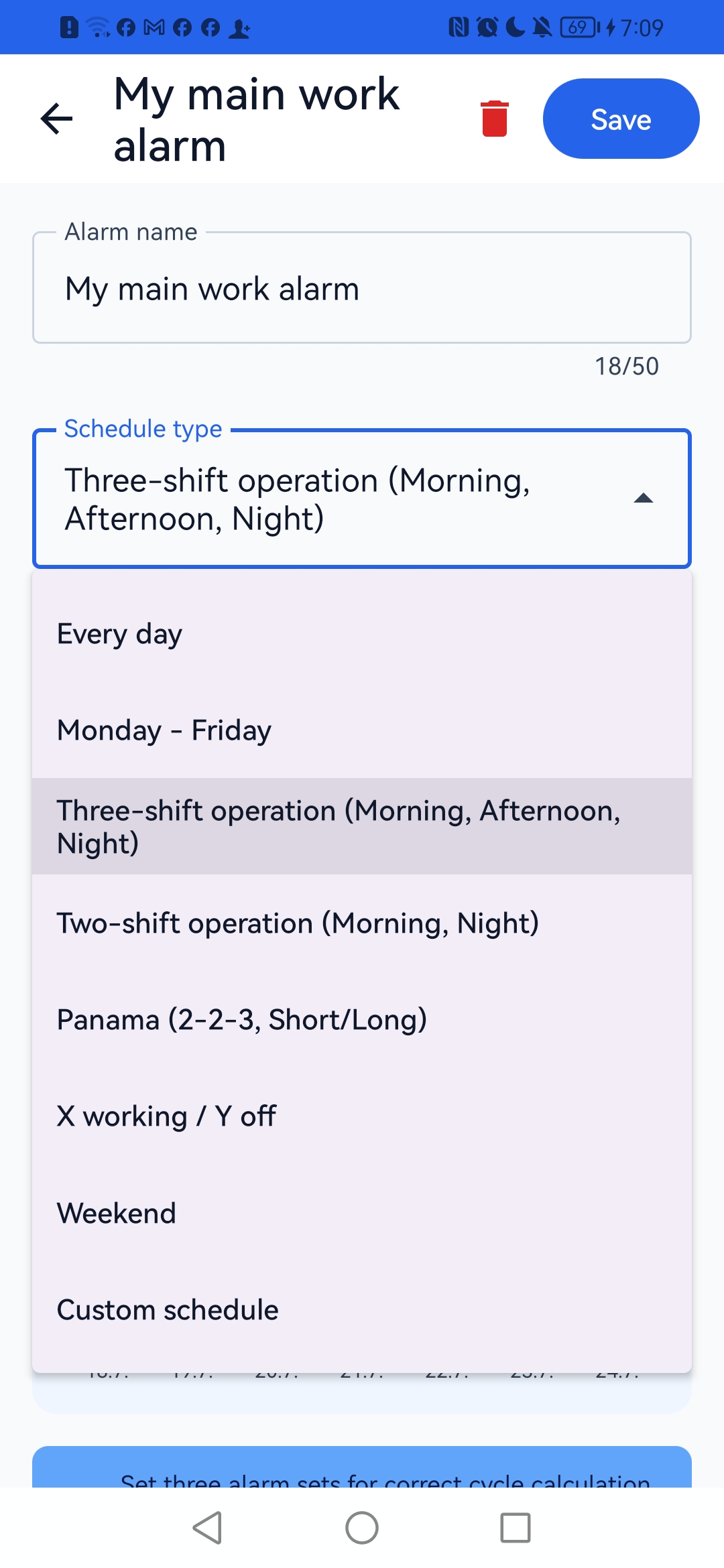
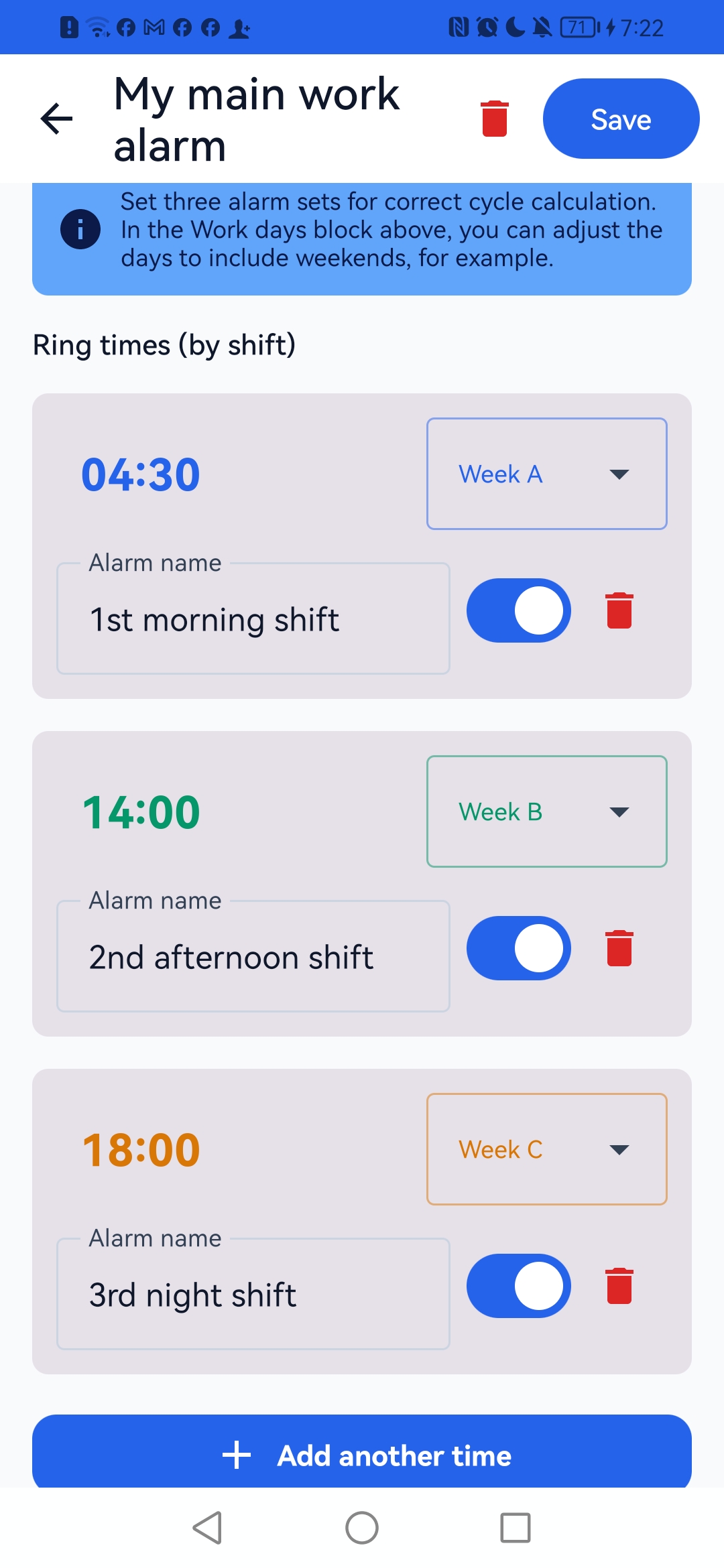
- 3 Select your shift type and set the exact ring time.

Step 2
Holidays & Exceptions
Need a day off? Easily override your regular cycle without messing up your future schedule.
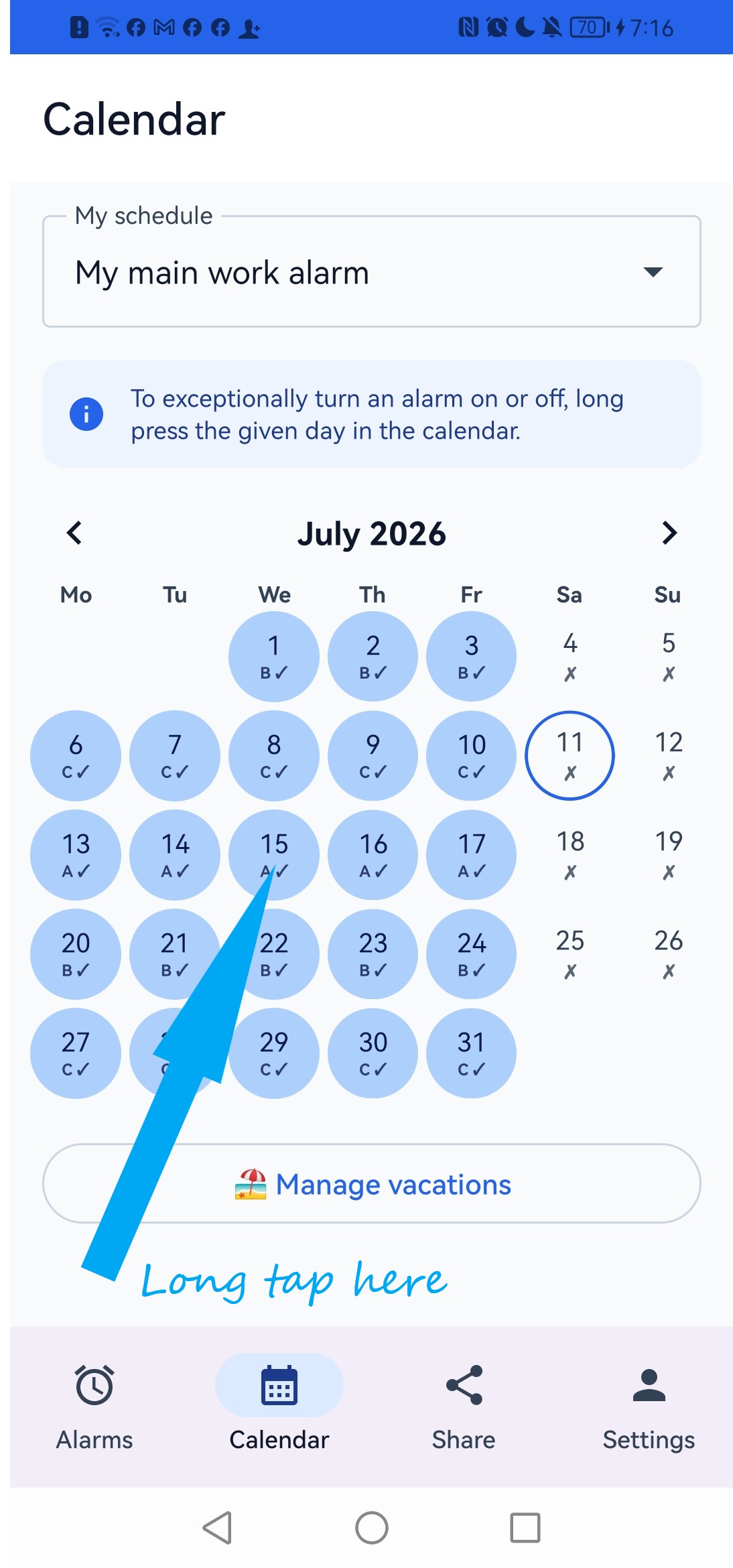
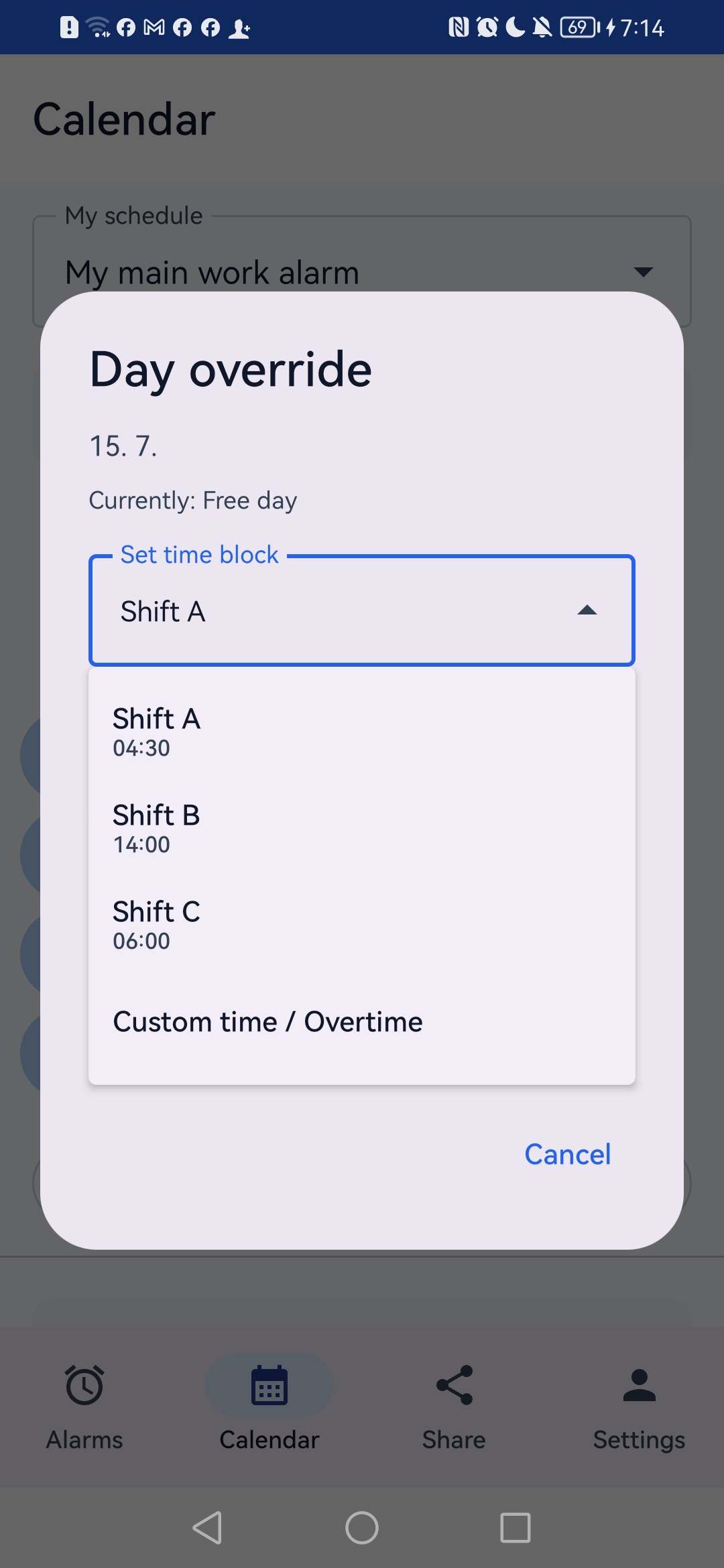
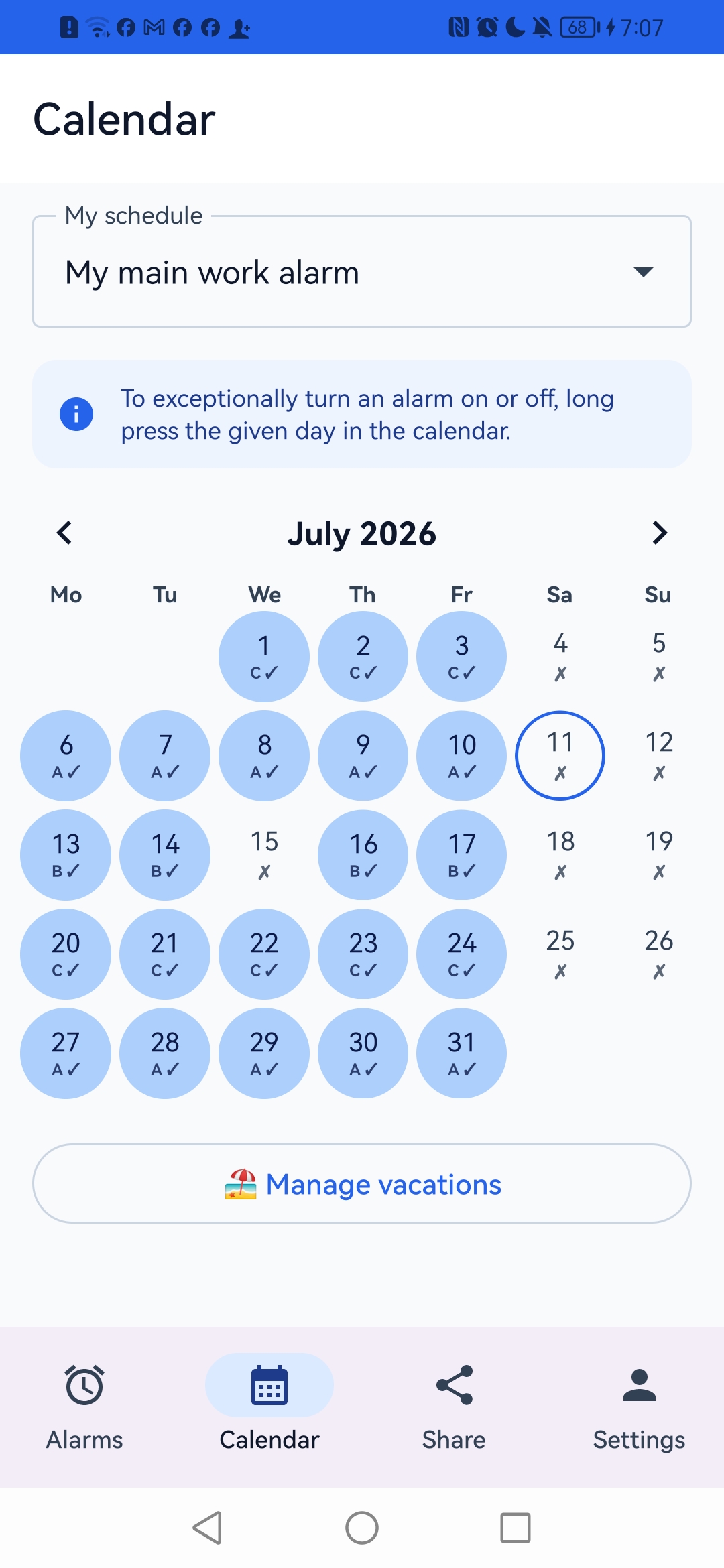
- 1 Open the Calendar tab in the bottom menu.
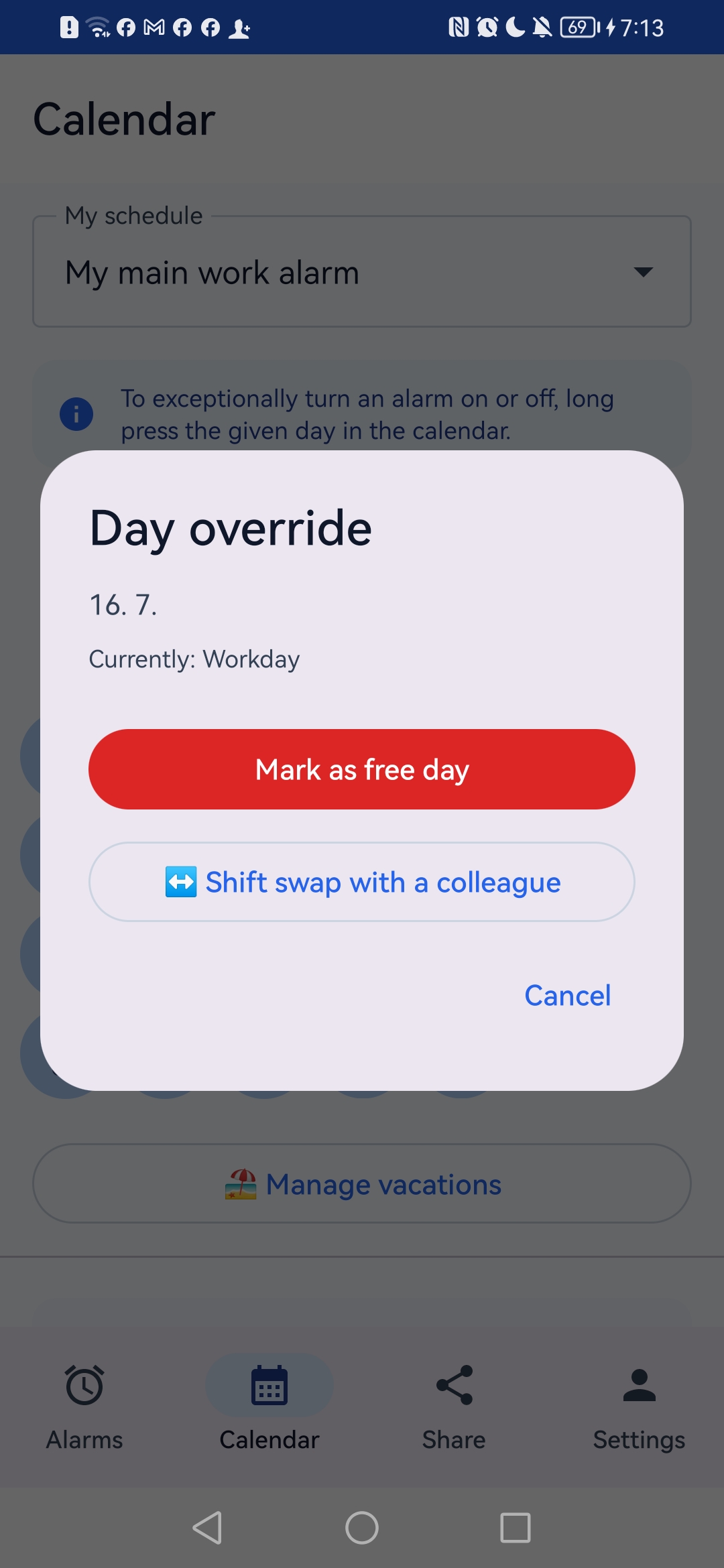
- 2 Select the date of your holiday or sick leave. Long press a day in the calendar to turn the alarm on or off just for that day, or to change its ring time for that day only.
- 3 Select your alarm and shift. Then press button.. The alarm for that day is now disabled!
Step 3
Syncing with Colleagues
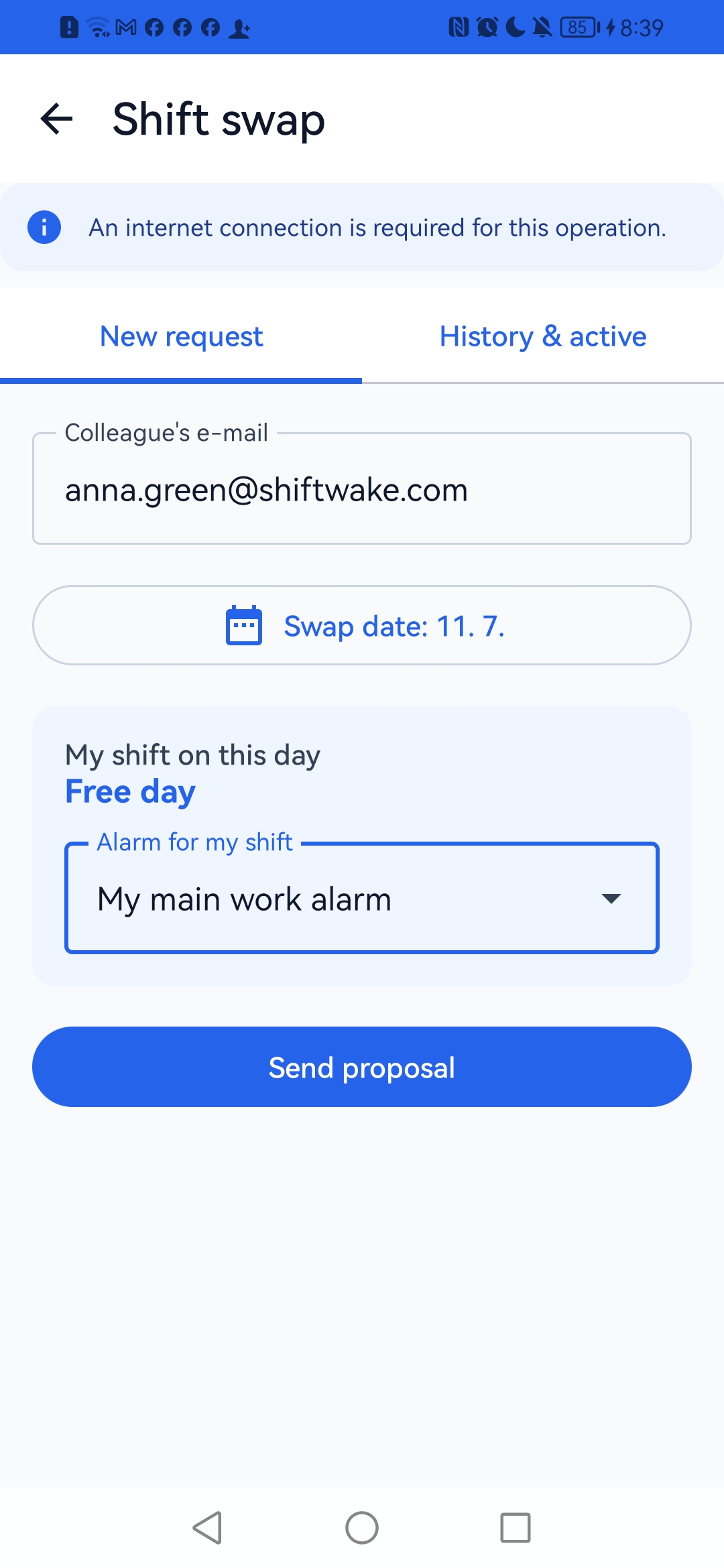
Swap shifts with your coworkers and let ShiftWake handle the rest for both of you.
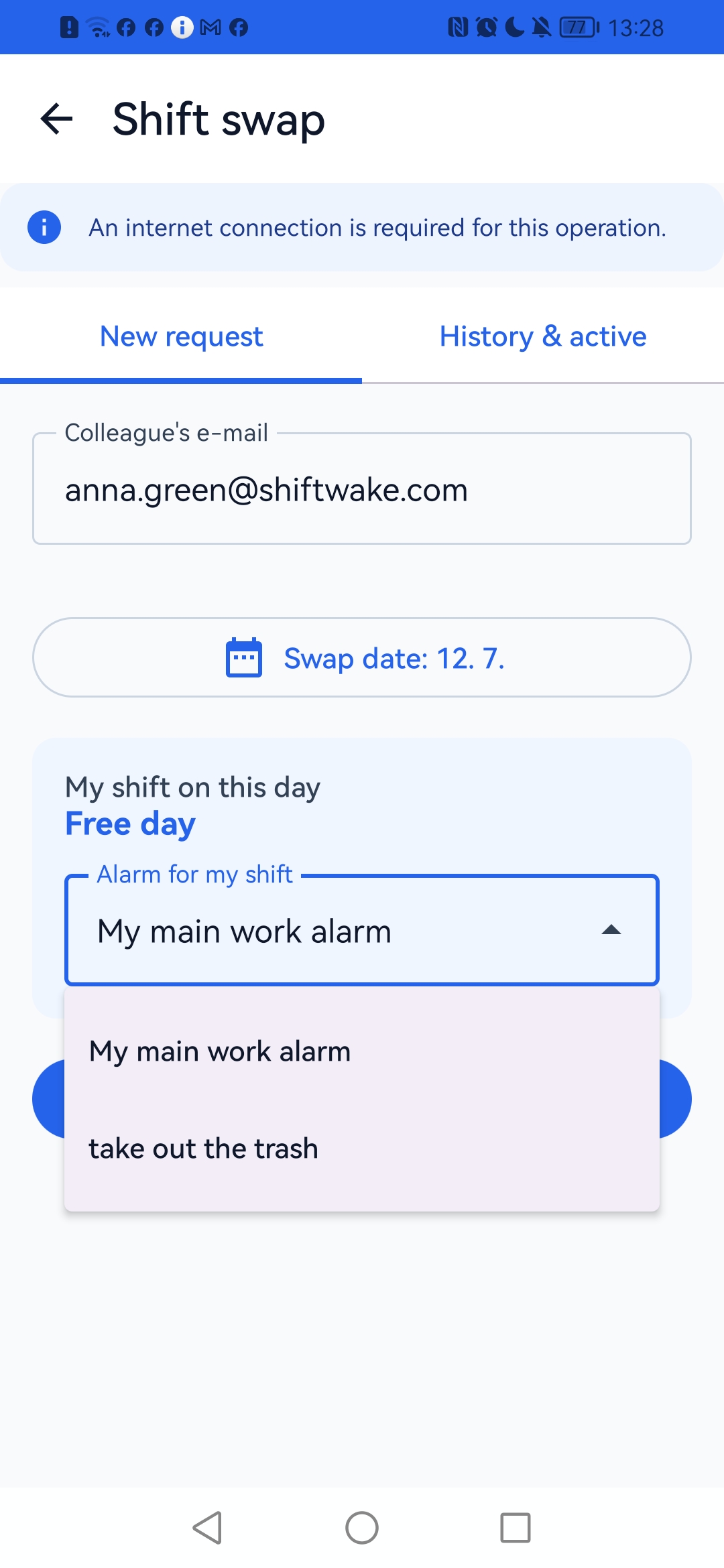
- 1 Go to the Swap section and enter your colleague's email.
- 2 Once they accept the swap, ShiftWake updates the alarms on both phones.
- 3 You will receive a message confirming or rejecting the exchange from your colleague.
- 4 No more manual changes - technology works for you.

Want every detail? Read the complete step-by-step manual.
Open the full User Guide